Keyboard & mouse
Serpentine3D is command-line first, but the mouse and shortcuts cover navigation, selection and the common operations. Everything here is remappable in Settings → Shortcuts and Settings → Mouse.
Navigation
| Input | Action |
|---|---|
| Right-mouse drag | Orbit (pan in a parallel view) |
| Shift + right-drag | Pan |
| Ctrl + right-drag | Zoom (drag up to come closer) |
| Ctrl + Shift + right-drag | Orbit, even in a parallel view |
| Alt + right-drag | Turn to face the nearest axis (see below) |
| Scroll wheel | Zoom (anchors on the cursor) |
| F1 / F2 / F3 / F4 | Top / Front / Right / Perspective |
| Ctrl+E / Ctrl+Shift+E | Zoom to fit (extents) |
| Ctrl+W | Zoom into a window picked with two corners |
| Home / End | Undo / redo camera changes, without undoing model edits |
| F7 | Toggle grid |
| F8 | Toggle Ortho (constrain picked points to construction-plane axes) |
| Hold Shift while picking | Ortho while held, or free if Ortho is on: points keep to an axis, and a rectangle's second corner makes a square |
| F9 | Toggle grid snap |
F8 and F9 can change drawing constraints while a command is waiting for a point; the unfinished drawing continues. Home and End navigate view history when the command prompt is empty. When editing text, they move the caret.
These are Rhino's chords. Orbit can be moved to the middle mouse button in Settings → Mouse; whichever button orbits is the one that takes the Shift, Ctrl and Alt chords, and the one that swipes.
Swipe to an axis
Hold Alt and flick the orbit button the way you want to go. The view turns a quarter of the way round, then settles on whichever axis is nearest, so a swipe left from Front lands on Right and a swipe down lands on Top. It is the quickest way to get somewhere in a single maximised pane, where the alternative is a function key or the View menu.
The swipe turns the camera and nothing else. Do it in a perspective pane and you get Top in perspective, with an ordinary drag to orbit back out of it. Do it in a pane that is already parallel, such as one of the four in the default layout, and you land on the whole named view: construction plane, label and all, exactly as if you had picked it from the menu.
A flick under about 12 pixels is not a swipe, so Alt and a click still does whatever it did before.
If nothing happens, check whether your desktop uses Alt and a drag to move windows: some Linux setups do, and the window manager takes the drag before Serpentine3D sees it. GNOME and current KDE use the Super key for that, so this is mostly older or hand-configured setups.
Views turn rather than cut
The swipe, F1 to F4, the View menu and a pane's own title menu all turn the camera to the new view over about a fifth of a second. Front and Back look identical on a symmetric model, so a cut tells you nothing about where you ended up; the motion does. Anything you do next lands it at once, so two quick presses are two turns rather than a race, and a script that sets a view and reads it back still sees the answer immediately.
Change the length, or switch it off, in your settings file:
Zero cuts straight there, as it did before.
Mouse chords
A mouse button held with modifiers can run any command. Add one in Settings → Shortcuts, or write it into your settings file:
The chord fires on a click, so a drag with the same keys held still
orbits and pans as before. Only the middle and right buttons can be bound —
the left one is busy selecting. Order and spelling don't matter:
ctrl+shift+mmb, mmb+ctrl+shift and shift+ctrl+middle are one binding.
Nothing is bound out of the box.
Files & editing
| Shortcut | Action |
|---|---|
| Ctrl+N / Ctrl+O / Ctrl+S | New / Open / Save |
| Ctrl+Z / Ctrl+Y | Undo / Redo |
| Ctrl+A | Select all |
| Alt+A | Keep every region, while CurveBoolean asks which to keep |
| Ctrl+G / Ctrl+Shift+G | Group / ungroup |
| Ctrl+H / Ctrl+Shift+H | Hide selection / show all hidden objects |
| Ctrl+L / Ctrl+Shift+L | Lock selection / unlock all objects |
| Ctrl+T | Trim |
| Ctrl+J | Join |
| Del | Delete selection |
| Ctrl+P | Export the current sheet to PDF |
| Ctrl+, | Settings |
The modelling shortcuts are preset on a fresh install and are added when upgrading older settings. Existing custom bindings take priority. Show all and Unlock all use the Shift pairs requested for Serpentine3D; Rhino uses those pairs for choosing individual hidden or locked objects instead.
Settings → Shortcuts lists both the modelling presets and the existing file, editing and view shortcuts. Add, edit or remove a row to change a binding immediately; removed keys stay unbound after restart. If two rows use the same key, the conflict is shown and the last valid bindings stay active until you resolve it. Restore keyboard defaults resets keyboard bindings without changing mouse settings, aliases or object snaps.
Selection
For Move or Copy, press V then Enter to enable Vertical. Movement follows
the construction plane's normal through the base point. You can pick a target
or enter a signed distance such as -25mm. Add ! _Move _Vertical or
! _Copy _Vertical in Keyboard Shortcuts to start with Vertical enabled.
- Click to select; Shift-click adds, Ctrl-click removes; click empty space to deselect.
- Box selection: drag left→right for a window (fully enclosed, gold box); right→left for a crossing (anything touched, white box).
- Object snaps — end, mid, center, quadrant, intersection, apparent intersection, perpendicular, nearest — toggle on the osnap bar under the command line. They keep working while a direction is held: the point lands on the locked line beside whatever the snap found.
- AppInt is the crossing you can see but cannot touch: where a rafter passes over a wall in a Top view the two never meet, so Int has nothing there, and AppInt gives you the point anyway, on whichever curve is nearer the camera. It belongs to the view you are looking through, so it moves when you orbit. Off until you switch it on.
Control points & sub-objects
| Shortcut | Action |
|---|---|
| F10 / F11 | Show / hide control points (curves and surfaces) |
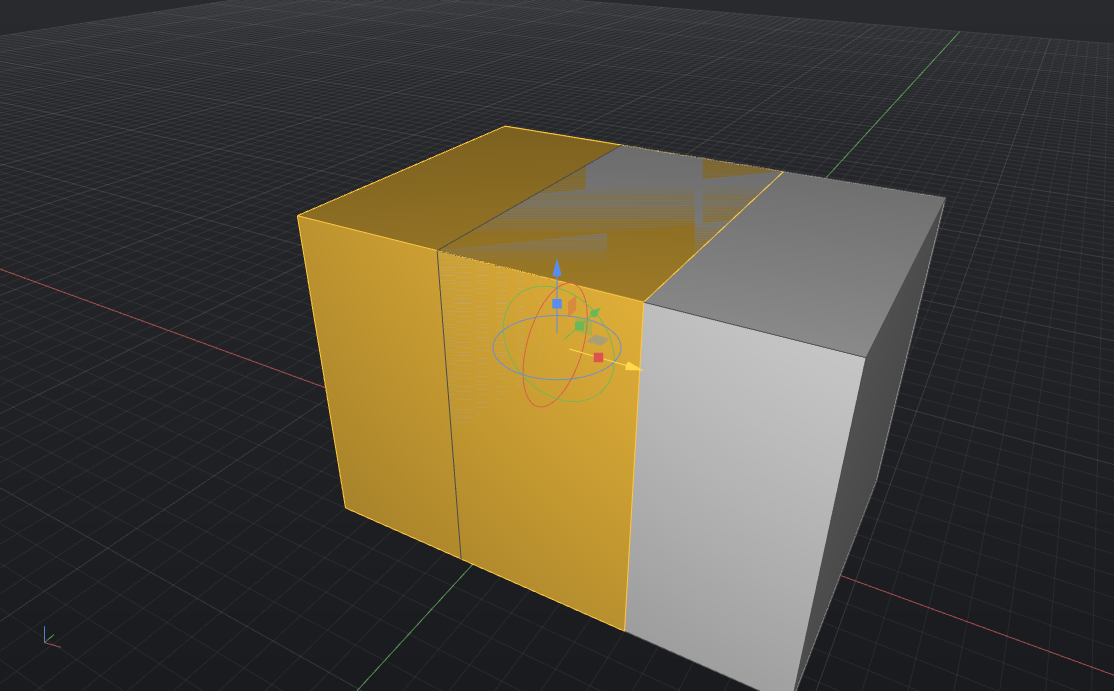
| Ctrl+Shift + click | Pick a face (push/pull) or edge (fillet) of a solid |
| Tab | While a command wants a point: lock the direction you're aiming in, then type the distance. Tab again releases it |
| Ctrl + click | While a command wants a point: stand a vertical up from the point you clicked, then type the height (Rhino's elevator mode) |
| Ctrl+M | Give the viewport you're in the whole window; again puts the layout back. Double-clicking a viewport's title does the same |
| Arrow keys | Nudge the selection along the construction plane (Shift ×10, Ctrl ×0.1) |
Command line
- Tab completes command names, except while a command is waiting for a point, when it locks the direction instead; ↑ / ↓ recall history.
- Enter on an empty line repeats the last command; Space is Enter
too, as in Rhino, so one hand can stay on the mouse (while a command is
asking for text, such as a layer name, Space is just a space); a
right-click in the viewport is Enter as well — it runs what you've
typed or repeats the last command.
deleteis never repeated, so a right-click after deleting something repeats whatever you were doing before it instead. - Type command options inline (
cap=n) or click the chips under the prompt. - Help → Command Reference opens the searchable command reference inside the app. F1 selects Top view.